Devices we ship are usually preconfigured. To reconfigure a device (different room or role), follow the steps below.
After installing the Ticketack app, each usage mode is summarised in the modes overview and below with its QR (generated from Kronos).
Configuration from Kronos
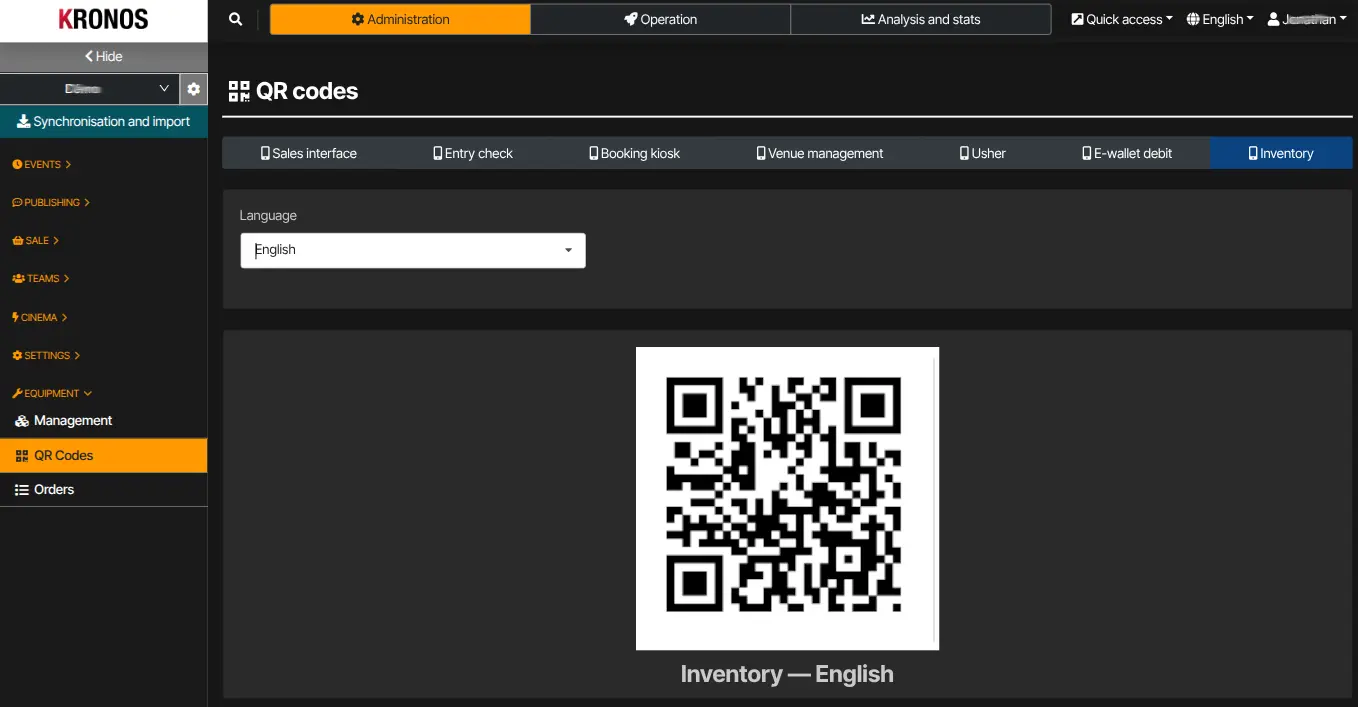
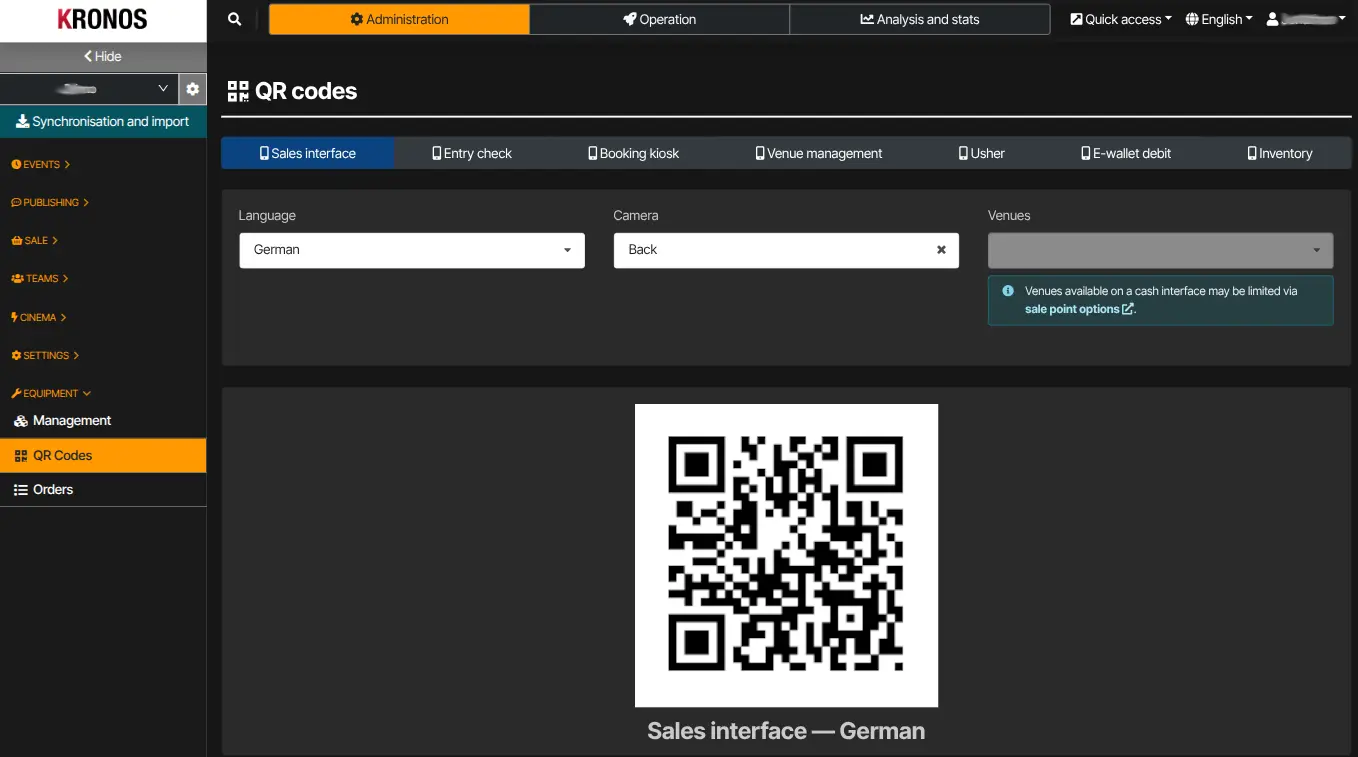
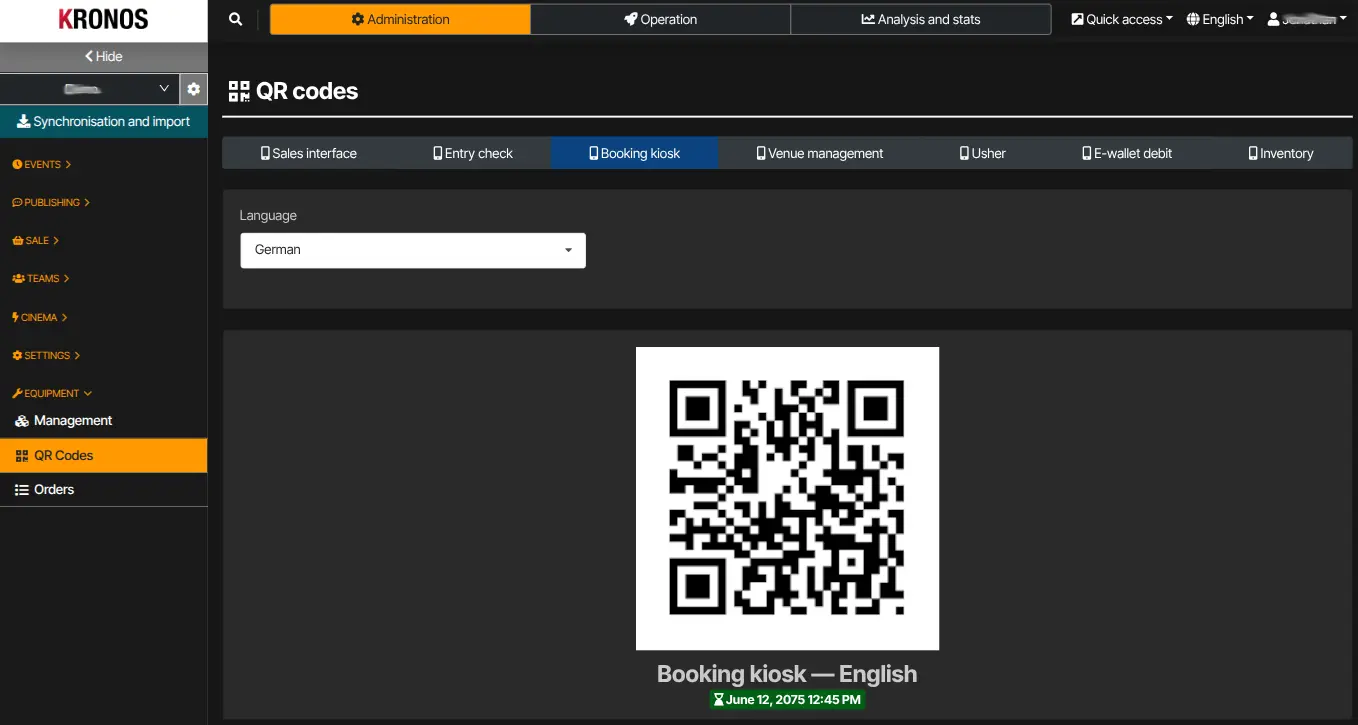
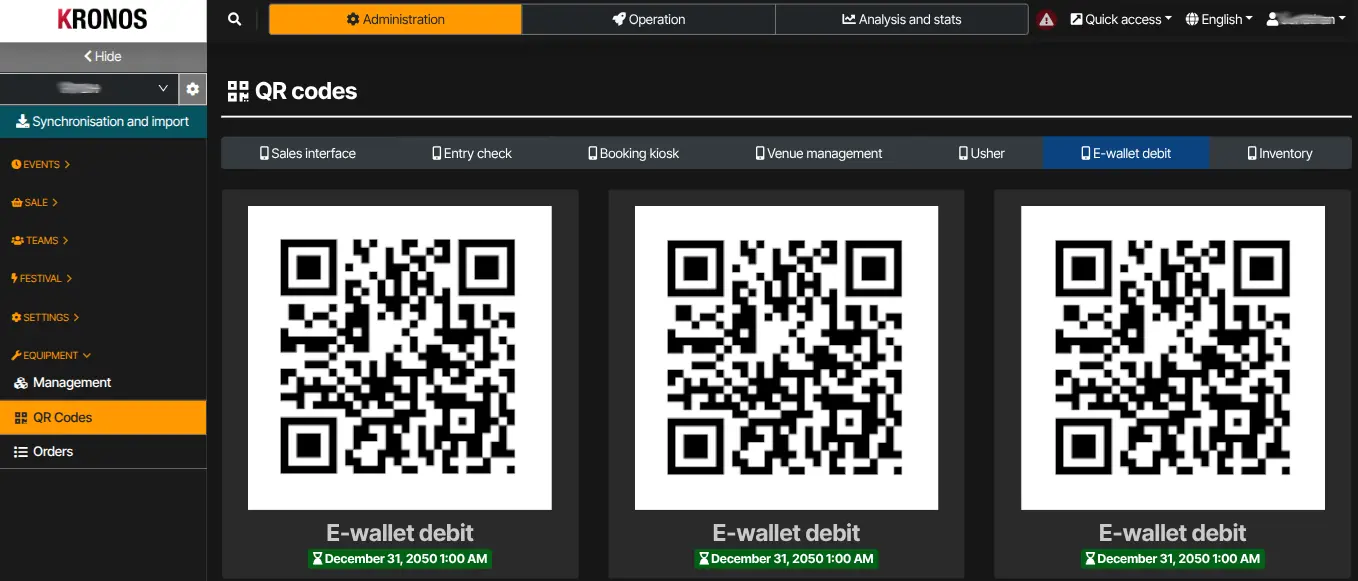
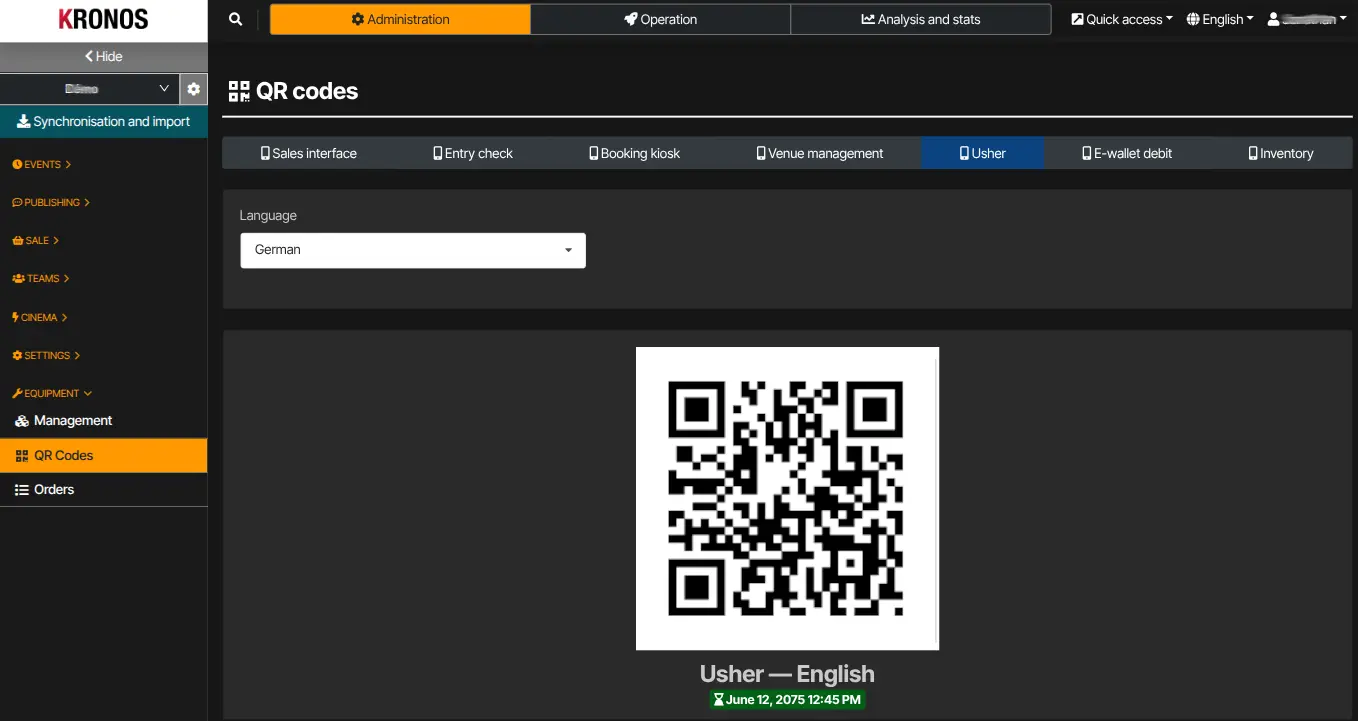
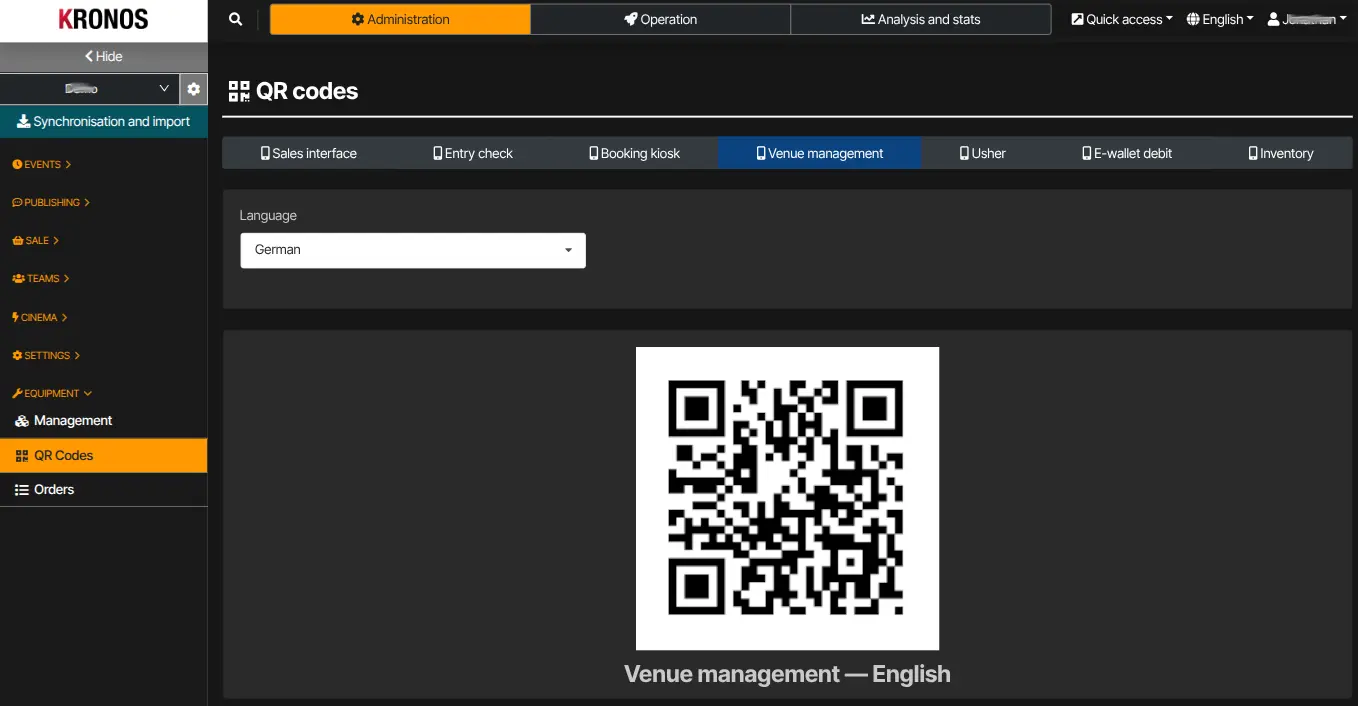
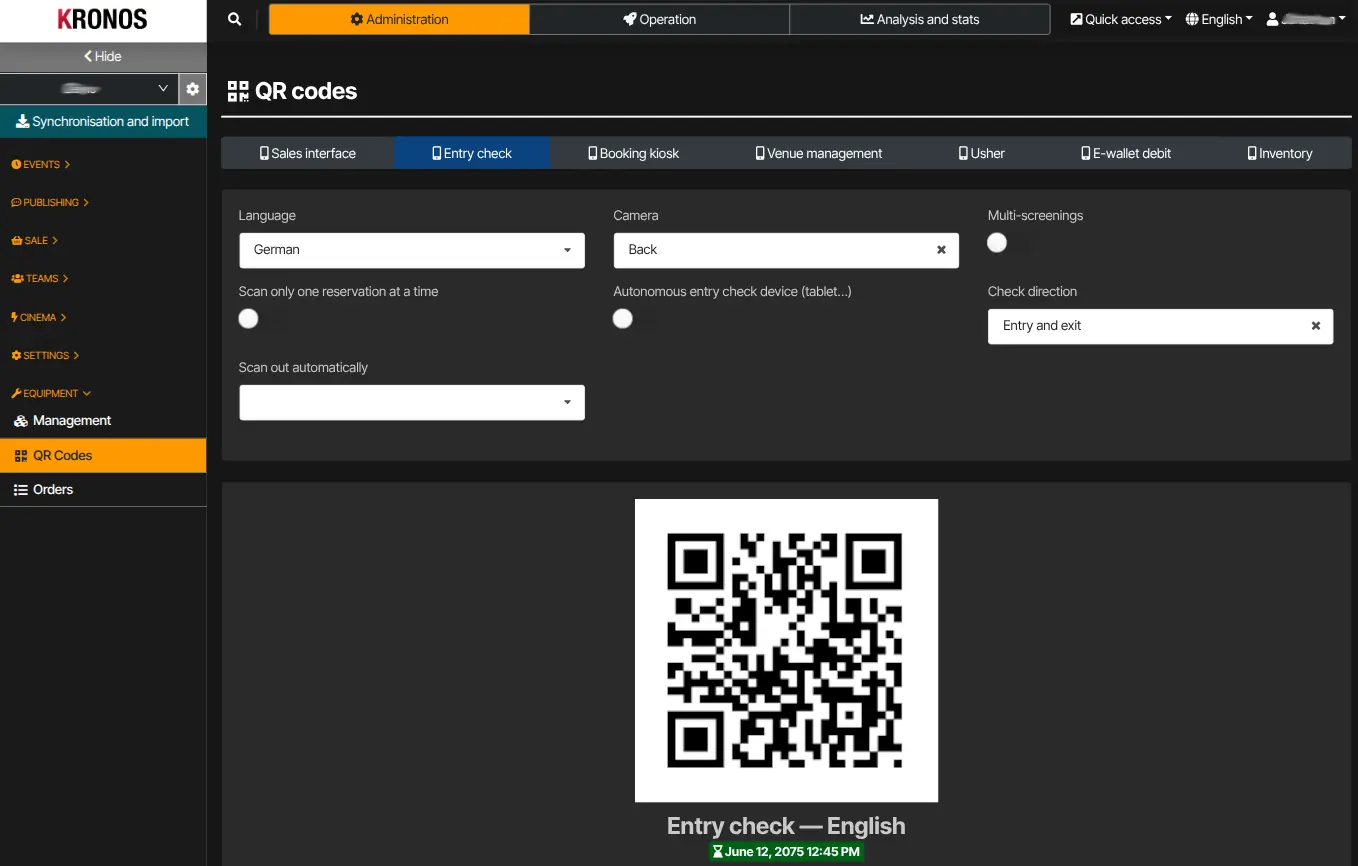
Sign in to Kronos, open Administration → Equipment → QR codes, pick the mode, generate the QR and scan it with the Ticketack app already installed on the device.
Sales mode
Generate the QR for this mode in Kronos (QR codes screen), then scan it on the device.
Kiosk mode
Generate the QR for this mode in Kronos (QR codes screen), then scan it on the device.
Electronic wallet
Generate the QR for this mode in Kronos (QR codes screen), then scan it on the device.
Usher / room management
Generate the QR for this mode in Kronos (QR codes screen), then scan it on the device.
Venue map
Generate the QR for this mode in Kronos (QR codes screen), then scan it on the device.
Entry check
Generate the QR for this mode in Kronos (QR codes screen), then scan it on the device.
Inventory
Generate the QR for this mode in Kronos (QR codes screen), then scan it on the device.