
Access profiles group Kronos permissions (read, edit, create, etc. per module). They are templates for quickly assigning the same rights to several users.
Open access profile management
- Sign in to Kronos, then open Administration → Users (
/users). - Click the Access profiles button at the top right of the list (see screenshot below).
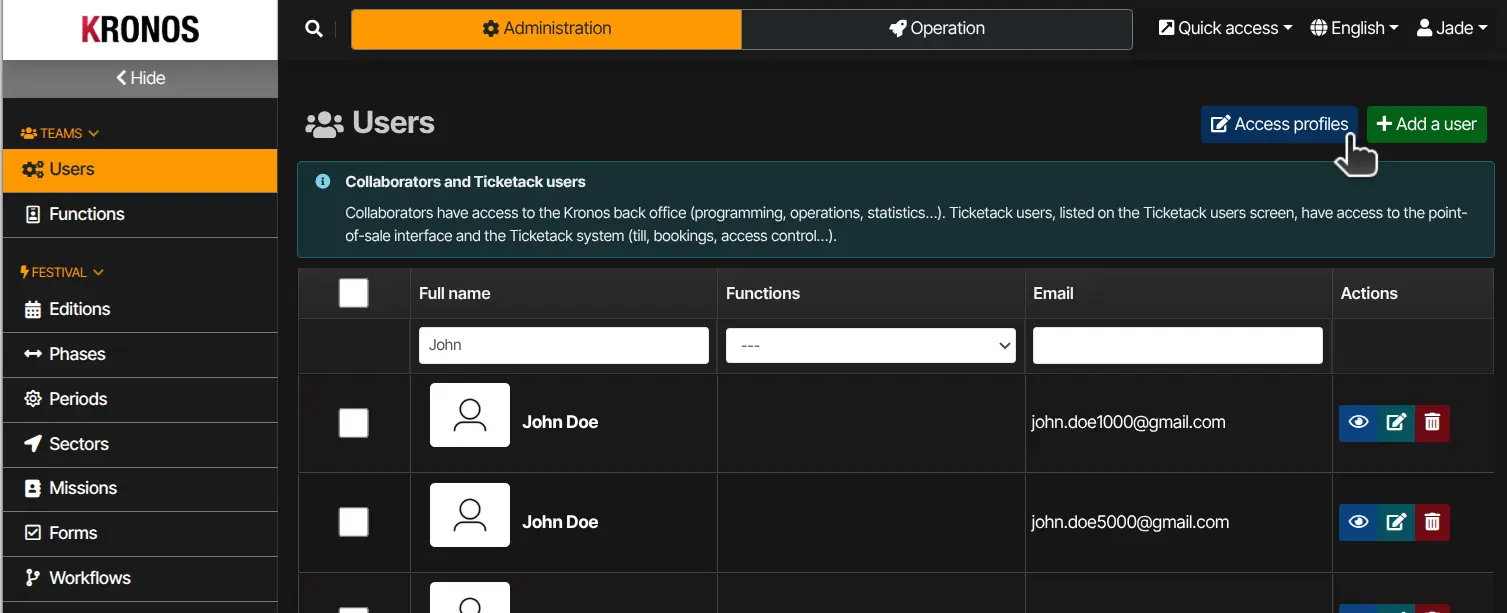
You reach your Ticketack instance page, Access profiles section (/tktInstances/edit/…).
If you do not see this button or the page shows a forbidden-access message, you do not have the required rights (Edit access profiles permission). Ask your manager or an administrator to grant them.
Create or edit a profile
- In the Access profiles section, enter the new profile name and click Add.
- Select an Access profile in the left column.
- Adjust the profile name and the rights table (create, read, edit, delete, etc. for each Kronos module).
- Click Save at the bottom of the page to confirm.
Saved profiles can then be applied to a user from their record, or in bulk from the users list.


