
To assign the same access profile to several users in one step, use the Users list.
Procedure
- Sign in to Kronos, then open Administration → Users (
/users). - Filter the list if needed: use the filter fields under the column headers, for example Functions (e.g. Volunteer, Cashier…), Full name or E-mail. Only users shown after filtering can be selected.
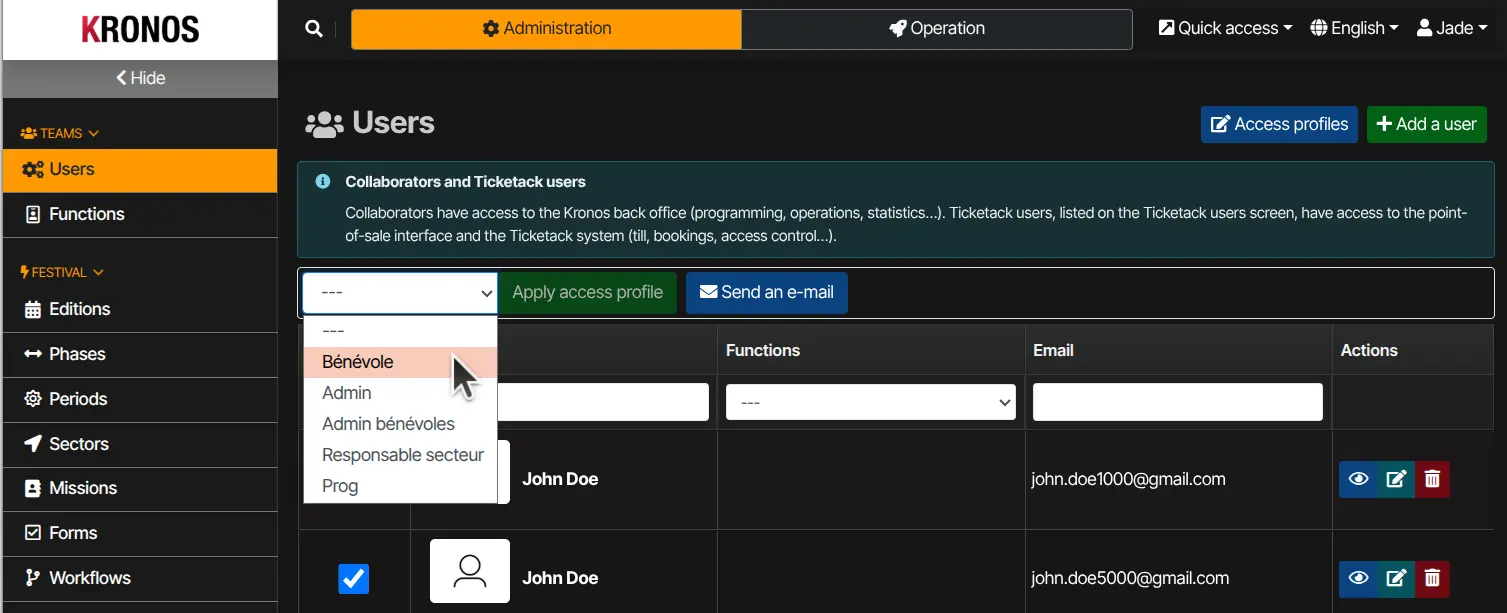
- Select users: tick the checkbox on each relevant row, or tick the checkbox in the first column header to select all currently visible rows.
- An action bar appears above the table: choose the desired profile from the drop-down list.
- Click Apply access profile.
- If a confirmation dialog opens (Apply access profile), review the summary and click Confirm application.
The selected users’ rights are replaced by those of the chosen profile. If you do not see the action bar or the Apply access profile button, you probably lack permission to edit user rights — contact your manager.


