
Payment methods offered at the till and online are configured in Kronos. You can set a global list and override it for specific sale points.
Global settings
Sign in to Kronos, then open Administration → Settings → Payment (/settings/edit/default/payment).
The Payment page shows a single Means of payment list. Select a method in the left column, then:
- enable or disable it with the Enabled toggle;
- fill in method-specific options on the right (SumUp API keys, Proxypay settings, payment fees, countries, etc.).
Each method is offered at the till, online, or on both channels depending on its type:
- Cash — (till)
- Coin-operated — device accepting coins and bills (till)
- Electronic wallet — prepaid customer balance (till)
- Sumup — SumUp terminal (till)
- Manual EFT — payment terminal not integrated with Ticketack (till)
- EFT — integrated ZVT terminal (till)
- Twint — Twint mobile payment (till)
- Transfer — bank transfer (till and online)
- Proxypay — online card payment, Net Oxygen gateway (online)
- Proxypay (alternative) — second Proxypay configuration (online)
- Pay on site — customer will pay later on site (online)
- Free — order without payment (online)
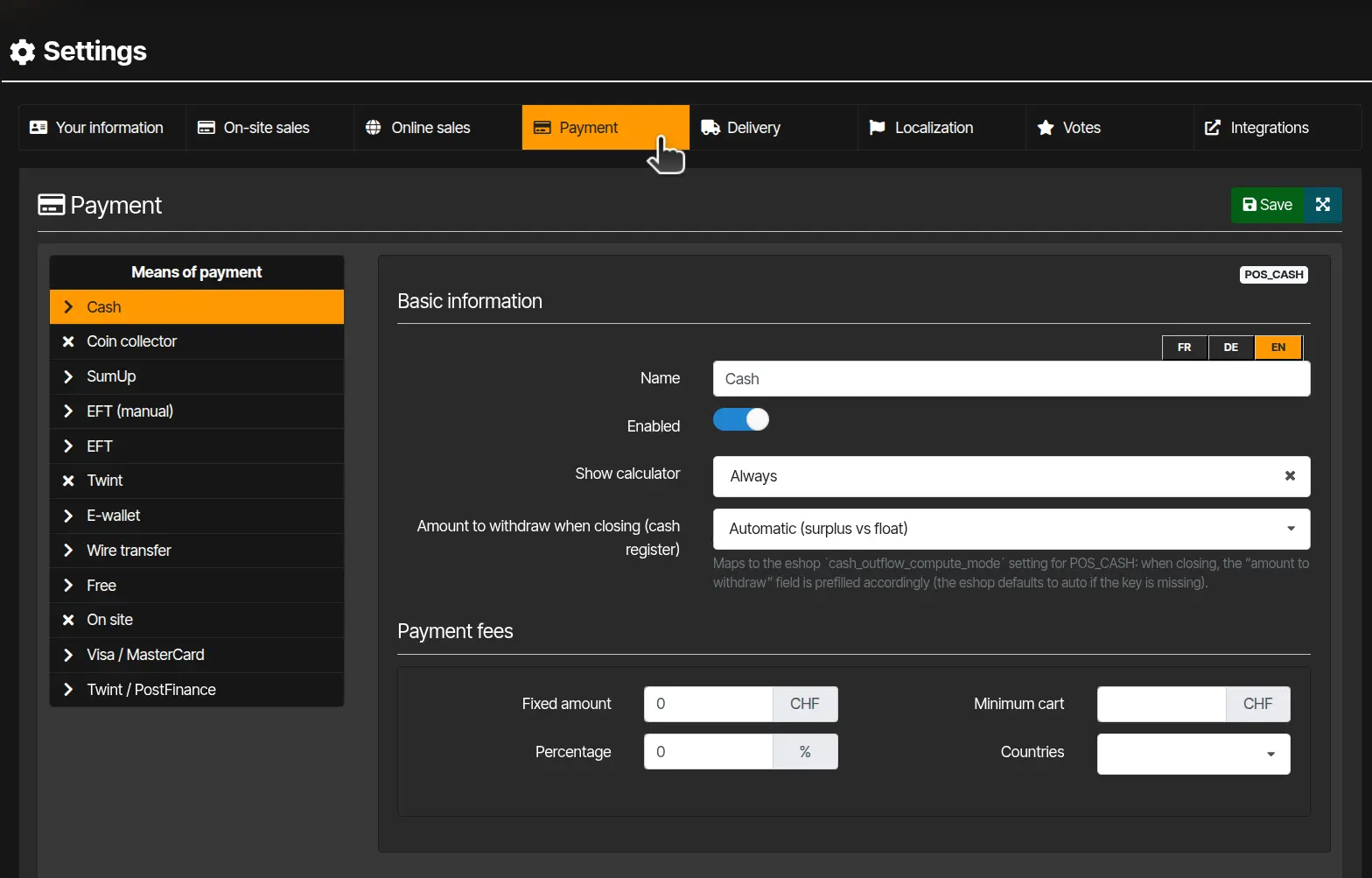
Changes apply to every sale point that does not have a custom configuration.
Override per sale point
A sale point can offer a different list of payment methods than the global settings (for example disabling Twint on one till).
- Sign in to Kronos, then open Administration → Sale points (
/salepoints). - Open the relevant sale point (
/salepoints/edit/…). - Expand Customised configuration for this salepoint.
- Click Choose a setting to override, select Payment, then adjust payment methods.
- Save the sale point.
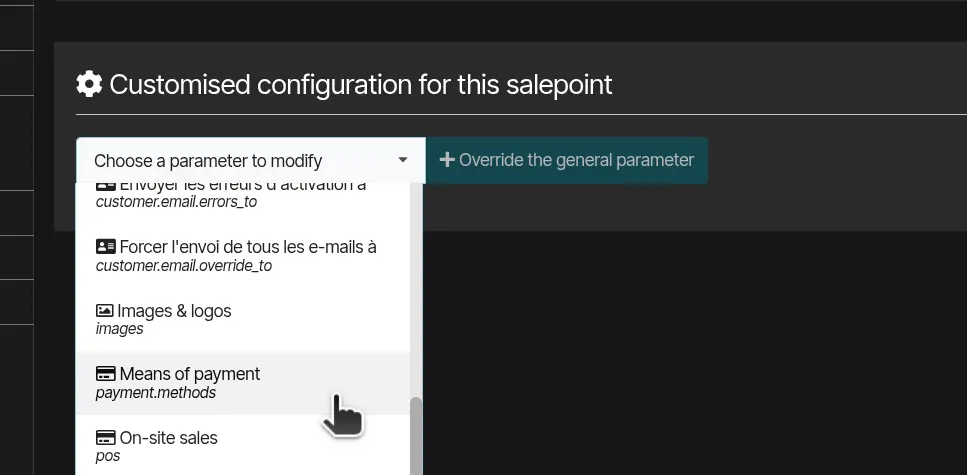
Badges in the section header show which settings are overridden. Use Remove custom configuration to revert to global settings.
Important: changes take effect after the settings cache expires (about 5 minutes). At the till, you may need to log out and log back in to see the updated list.


