
On the point-of-sale interface, each payment terminal (EFT) and each printer can be restricted to one or more salepoints. Hardware that does not apply to the current salepoint is hidden from cashiers.
Configure in Kronos
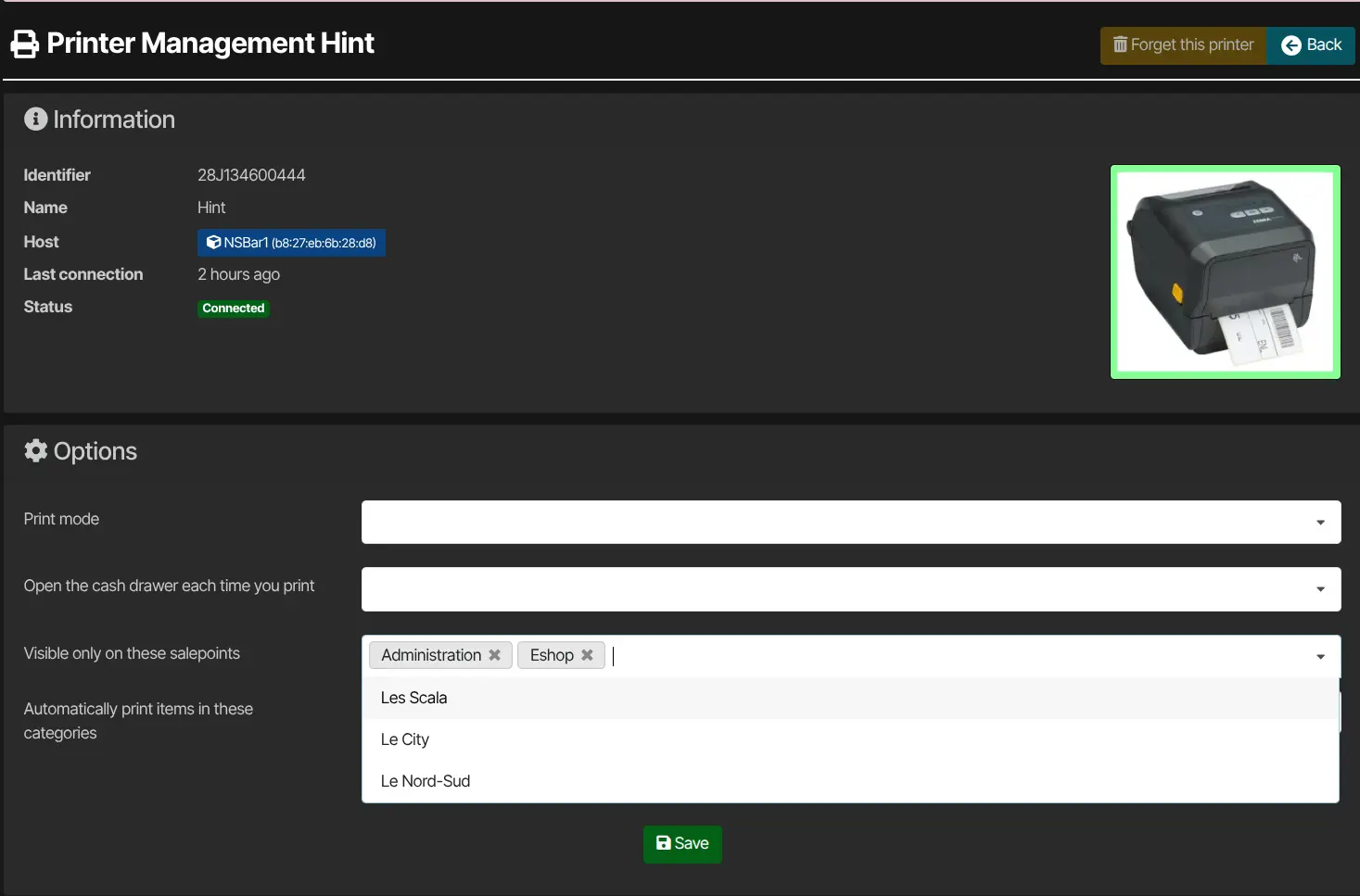
Sign in to Kronos, then open Administration → Equipment (/devices). Find the payment terminal (EFT) or printer you need, then open its management page by clicking the device illustration on its card.
In the device options, use the Visible only on these salepoints field:
- Leave empty — the payment terminal (EFT) or printer is offered on all salepoints.
- Select one or more salepoints — the device is only offered on those salepoints; it is hidden everywhere else.
To hide a device on specific tills, select only the salepoints where it should remain available. If no salepoint is selected, the device appears on all salepoints.
Effect at the till
The filter applies when choosing a printer or payment terminal on the sales UI: only devices allowed for the current salepoint are listed.
Save the device in Kronos after editing. If a till session was already open, refresh the sales interface to see the change.


