
Login
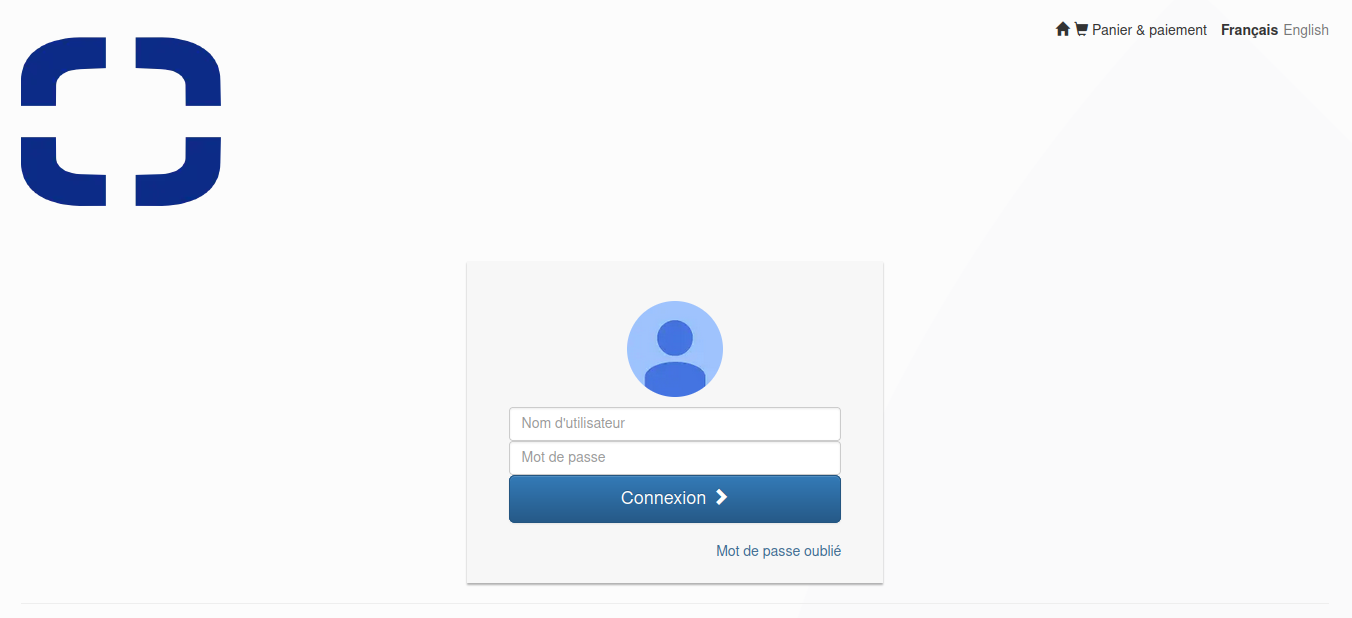
Log in with your login and password
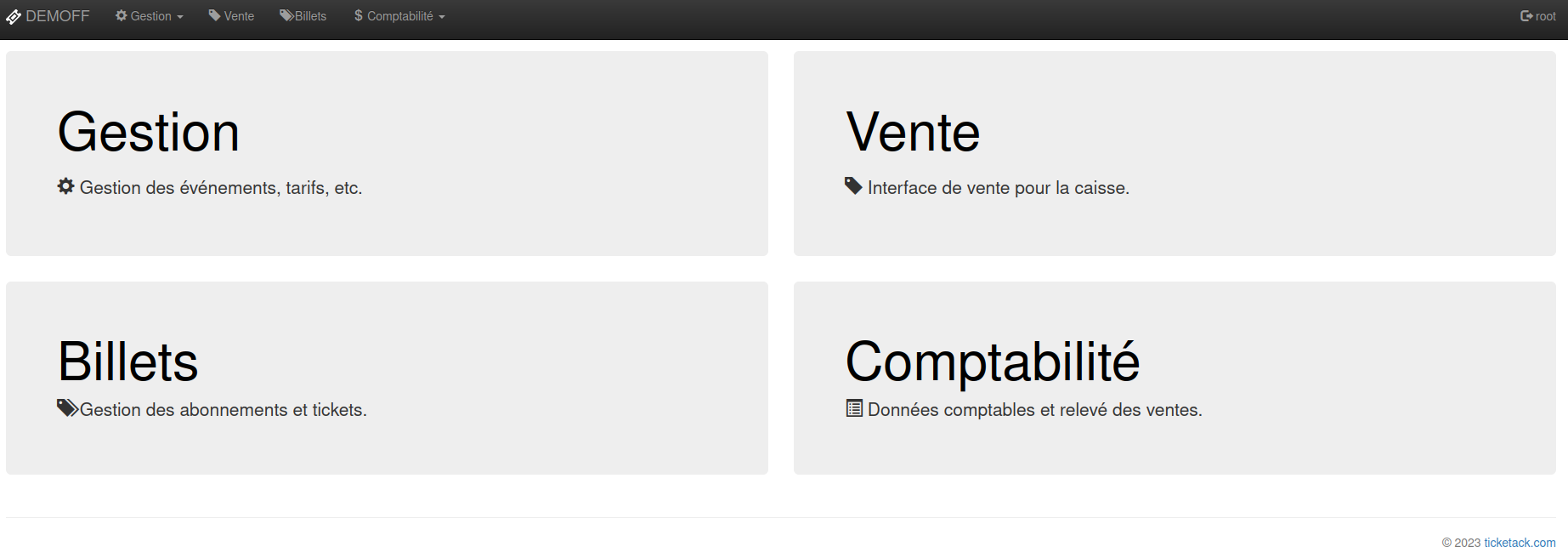
If you are an administrator, choose “Sale”
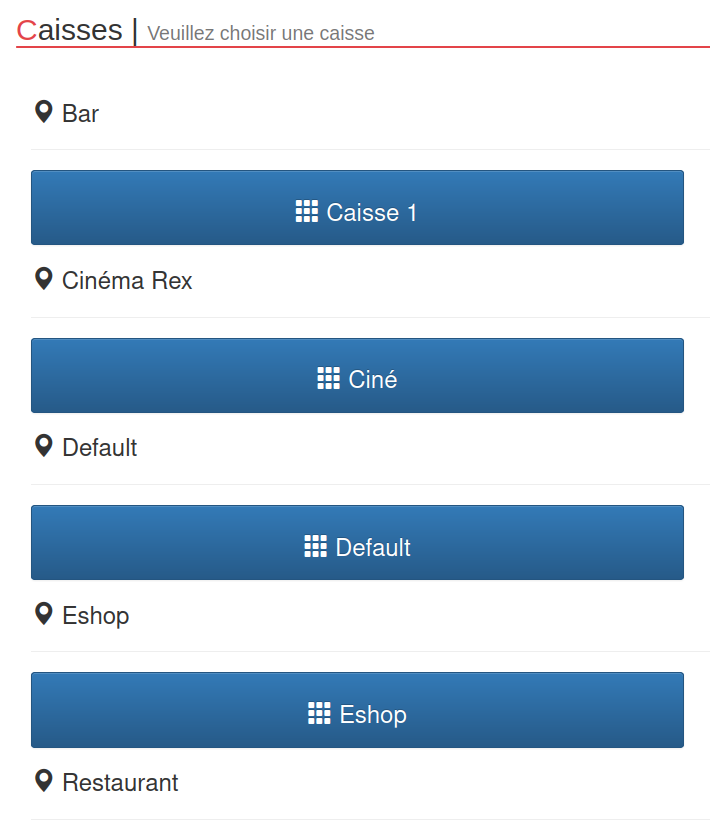
Choose a crate (if requested)
Control
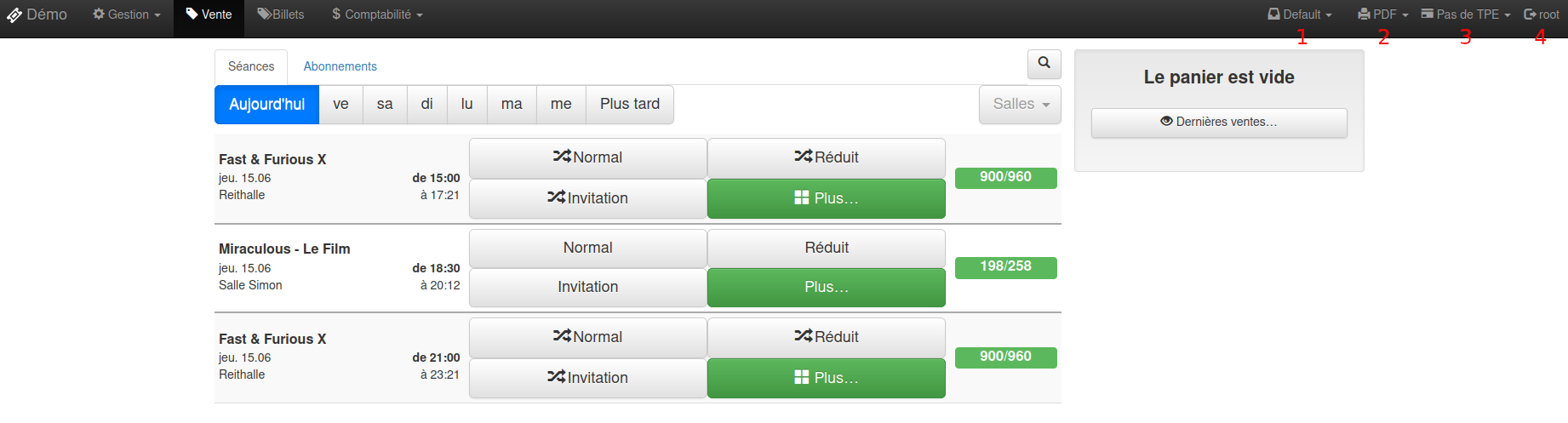
Once at the point of sale, you must check:
- 1. having chosen a fund
- 2. have chosen a printer
- 3. having chosen a TPE for sales in CB
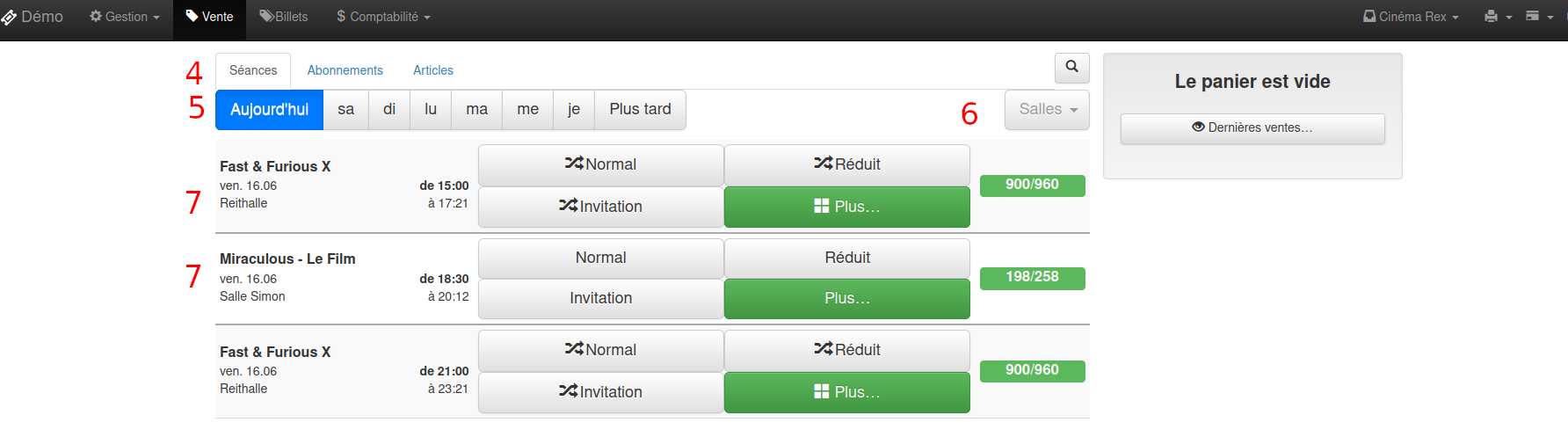 Vente
Vente
- 4. List of Products You Can Sell
(sessions, subscriptions, articles, others…) - 5. filter on days of the week for sessions
- 6. filter on the event location
- 7. list of events
Sell a session
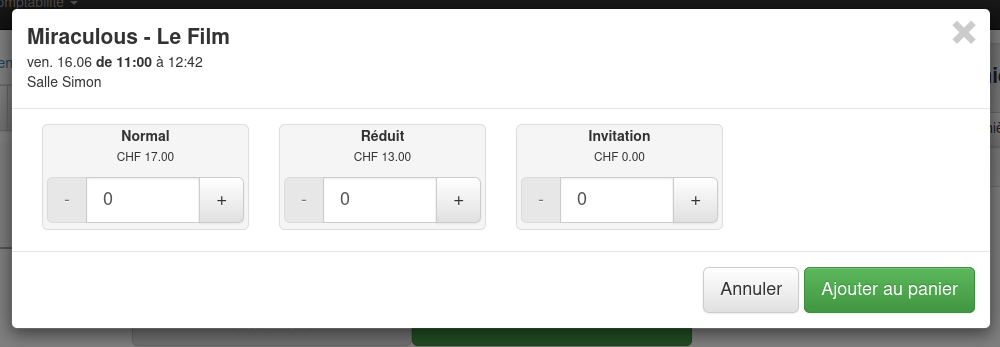
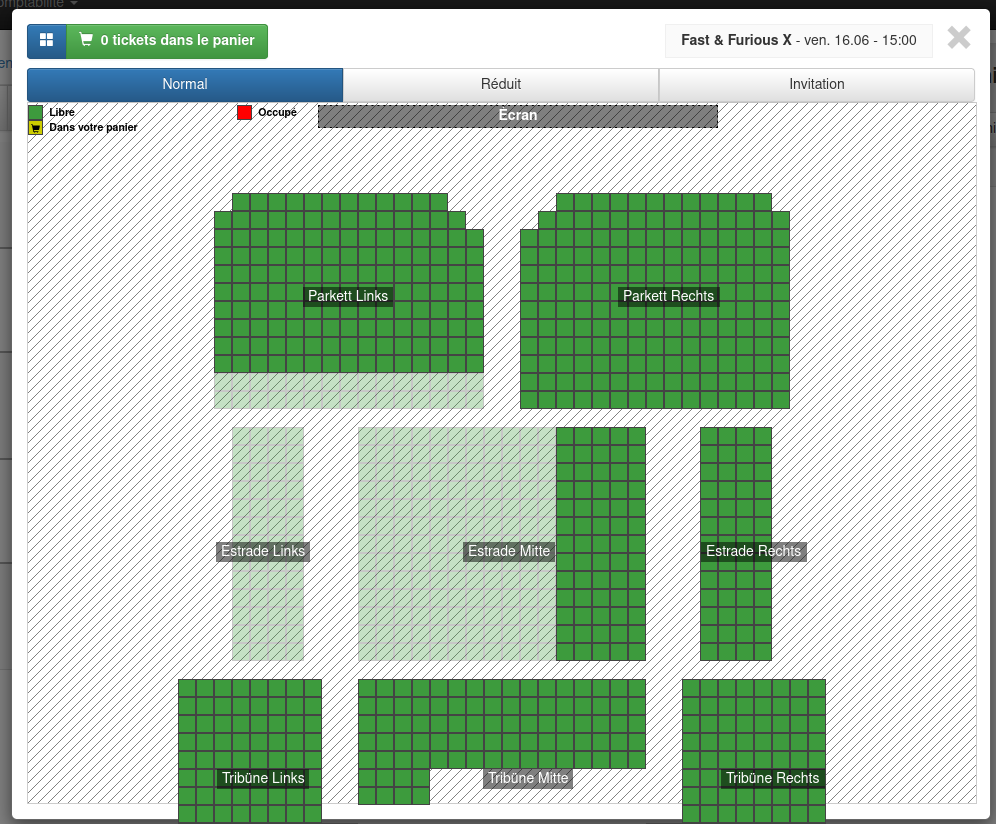
Choose a price to add it to the basket or choose the “more” button:
- to add several places and/or prices at the same time
- to choose a seat, if a seating plan exists in the room
Sell a subscription
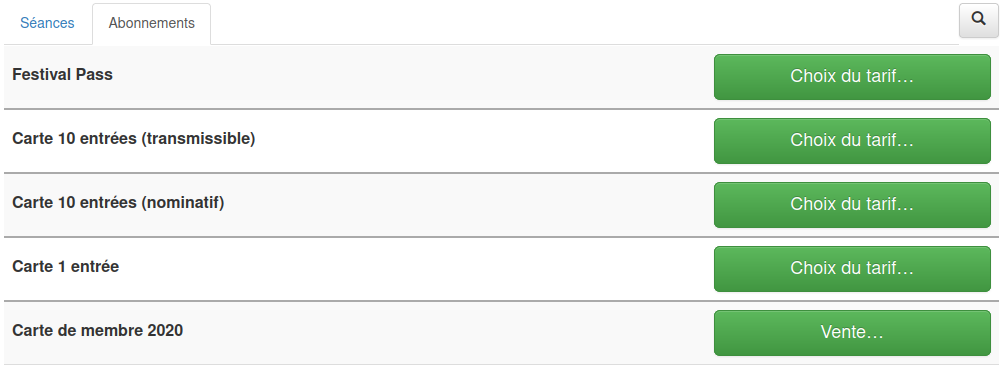
Press the “Choice of price…” button on the desired subscription
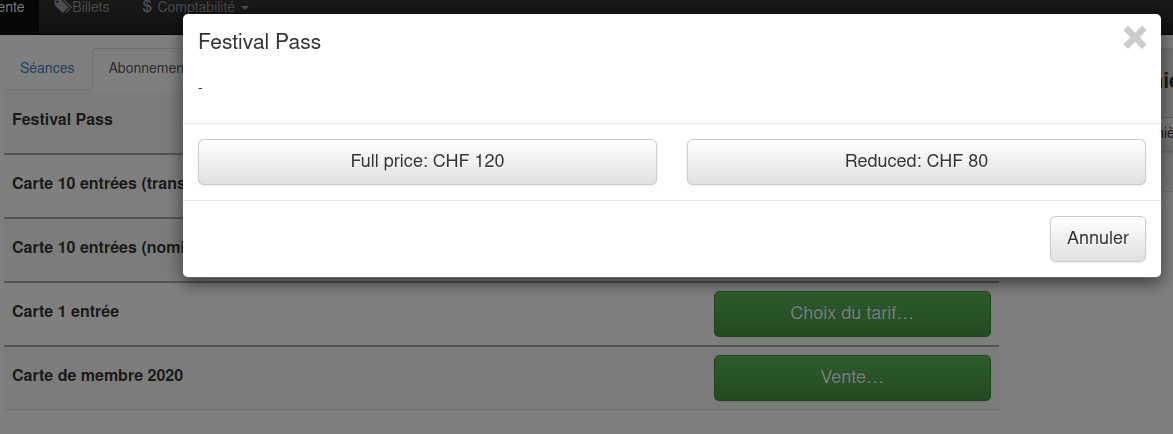
Choose a rate
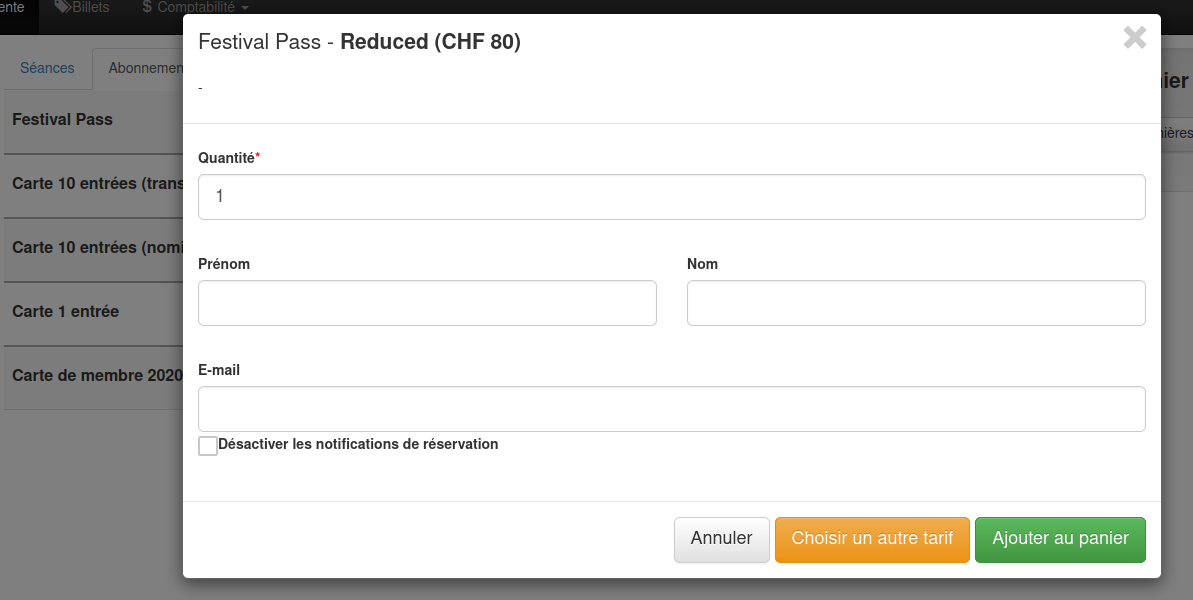
Enter information, if requested.
Selling items

Choose an item category to sell (Shop)
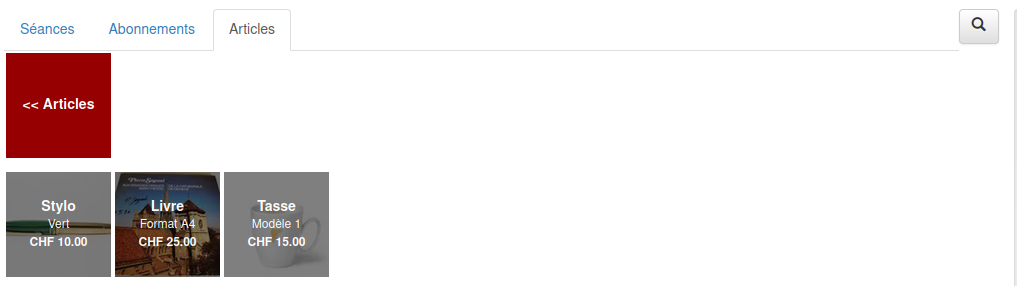
Tap on an item and it is added to the cart
Panier
Handle the basket
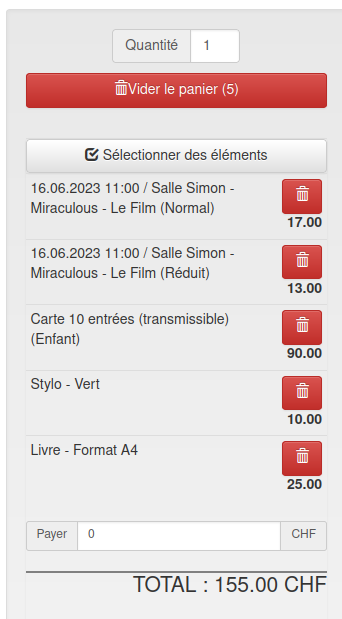
- you can delete an item from the cart by pressing the trash icon of the same line or you can use the “Select items” button, delete multiple items
- you have the possibility to choose the currency (CHF, EUR, USD,…), if you have configured several currencies in your ticketing
Cash in on a sale
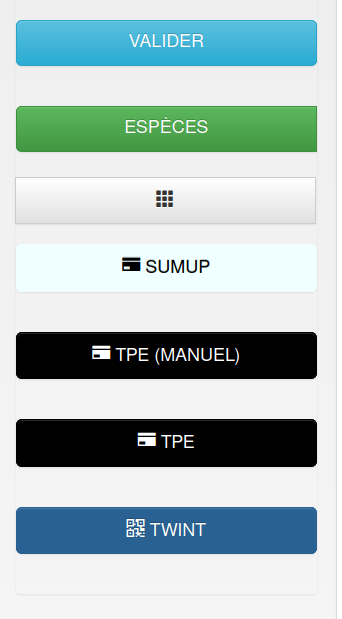
- Payment : tap the desired payment method
- split payment: the customer has the possibility to pay for his basket with several different payment methods (cash, credit card, twint, etc.).
To do this, you must indicate the amount in “Pay” and press the desired payment method, for the rest of the amount you can choose another payment method.
- calculator: adisplay the calculator (always, optional or never) for cash payment, this makes it easier for you to calculate to give change
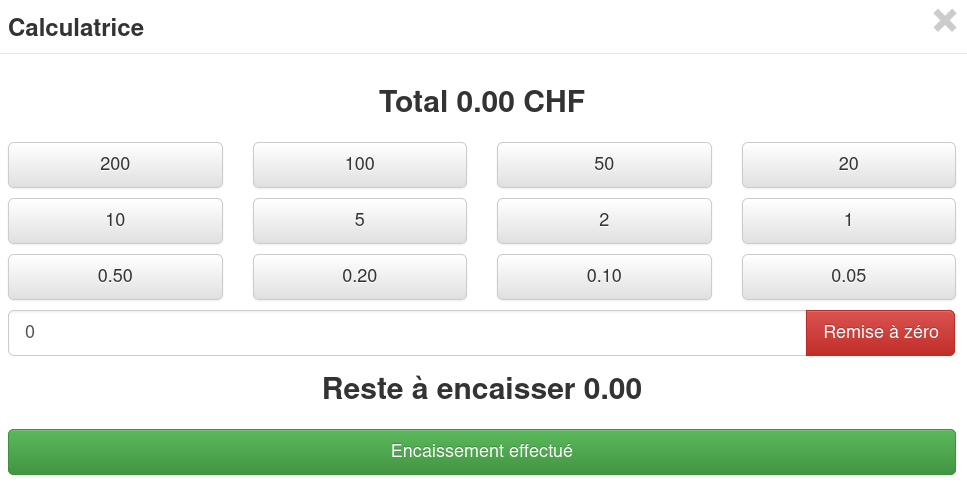
Sale completed
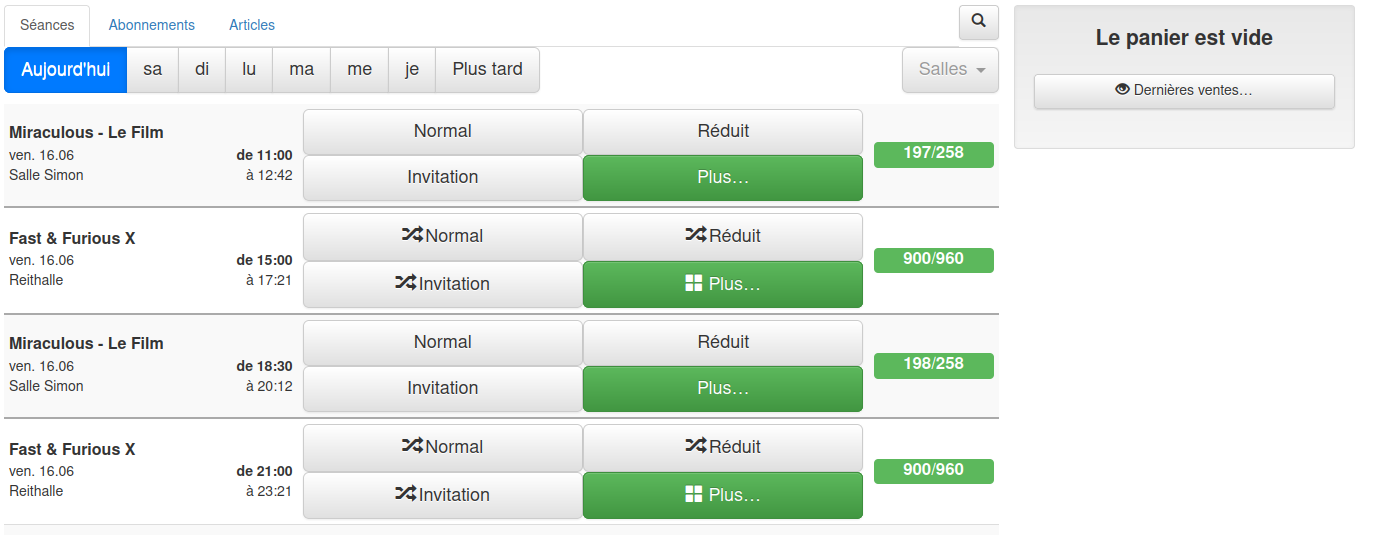
Once the sale is over, the cart empties and returns to the default display
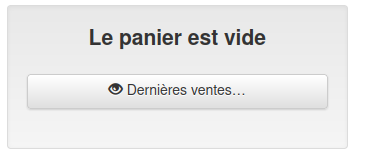
You can view the latest sales by pressing this button


